Tempo and audio
Everything in a show moves on the beat: clips start on it, and formulas that use beat follow it. The tempo card in the header shows the BPM and the beat; click it to open the tempo controls.
Choose where the tempo comes from
Open the tempo controls and pick a Source. You can switch at any time, also from the touch remote.
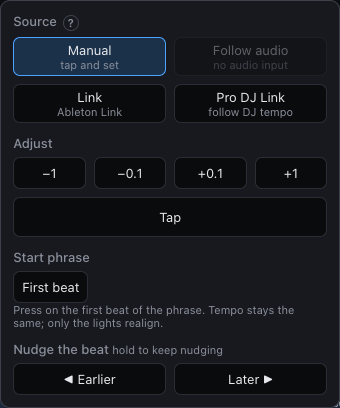
| Source | The tempo comes from |
|---|---|
| Manual | You: set the BPM, tap it, nudge the beat. |
| Follow audio | The music. The engine locks to the detected tempo and pulls the beat onto the kicks. Needs an audio input. |
| Ableton Link | A Link session on the network. |
| Pro DJ Link | The DJ's players: either the tempo master or a numbered deck. |
With Link or Pro DJ Link the lights only follow. BPM, Tap and Sync are switched off, so the lighting can't change the DJ's tempo. For Link you can allow it with Allow tempo changes to Link. Nudges only ever move the lights.
Set the tempo by hand
With Manual, Tap a few times in time with the music, or use −1, −0.1, +0.1 and +1 to fine-tune the BPM.
Line the beat up
The tempo can be right while the beat is in the wrong place. Two controls fix that, both next to Tap:
- First beat (S) starts a new phrase now: press it on the first beat of the music. The BPM and source stay as they are, and queued launches and stops happen on the new downbeat.
- Nudge earlier (A) or later (D) moves the beat by a small step. Hold the button or key to keep moving.
The keys work in every layout and on the remote while you are not typing in a field.
Audio input
By default the engine listens to the computer's default audio input; macOS asks for microphone access the first time. Click the audio meters at the end of the tempo card in the header (or No audio input) to pick another input, choose which channels to analyze, set the input gain, or turn analysis off. To react to music playing on the Mac itself, route it through a loopback device such as BlackHole and pick that.
Input gain brings the feed to the level the analysis works best at; the meter shows a mark for it. Auto keeps the loud parts there, and Manual is a slider. A red light means the sound card's input itself is clipping, which only the interface's own gain can fix.
Detecting the tempo
The header shows the detected tempo. Sync adopts it and puts a beat on the last kick; Follow keeps the tempo and the beat locked to the music.
A tempo counts as detected once the kicks land on its beat. When they stop, in a breakdown or over a rolling bass line, the last tempo is held (amber) and Follow keeps it until a solid beat comes back. A guess before the first solid beat is greyed out and never followed.
Like DJ software, the detection has to choose between half and double tempo. It looks for a tempo between 88 and 175 BPM; the headless server takes --min-bpm to move that range.
What formulas can hear
Formulas read the music as bass, mid, high and level (0 to 1), and kick, which is 1 on each kick drum and fades out. Levels are measured against the loud parts of the last few minutes, so a drop reads near 1 and a breakdown reads low. See Moving with the music.
Audio output
The audio in the arranger plays on this computer. Audio output in the same menu says where: the system's output or any sound card, and on one with more outputs, which pair of channels.
Cue gives blind mode an output of its own, say headphones, or another pair of channels on the sound card. With a cue output on, audio played in blind mode goes there and the room hears only what the lights are playing. With it Off, everything plays on the main output, blind or not.
Pro DJ Link
Connect the computer to the decks' network and play a track. Choose Master to follow whichever player the DJ has as tempo master, or a numbered deck to follow that one. A deck that disconnects stays marked Offline, and the lights keep the last tempo. The engine only listens and announces itself; it never sends playback or sync commands to the players.
This version follows the pitch-adjusted BPM and doesn't know where the beat is, so use First beat and the nudges to line the lights up. If other DJ software holds UDP ports 50000–50002, the tempo controls say so.
Turn on Show deck info in Show settings to see each deck's track, artist, BPM and waveform beside the stage when the players can supply them.
DJ players
The DJ players panel shows every player on the network, also with nothing loaded: what it's doing, its pitch, the beat in the bar, where the track comes from, what media is in it, its model and firmware. Add it to any layout in the layout editor. While one is on screen the engine listens for Pro DJ Link, whatever tempo source the show uses, and joins the network as an observer.
With a mixer on the network, decks whose channels it has audible are marked On air in red, and the mixer gets a card of its own with a lamp per channel. Channels match player numbers, which follow the mixer port each player is plugged into. Without a mixer nothing can tell what's audible, and the panel says so. Other devices, such as a laptop running rekordbox, are listed at the bottom.