Screen layouts
A screen layout says what goes where in the window. Split it any way you like and choose what fills each part. Layouts belong to this computer, not to the show, so a show opens the same anywhere and your screens stay set up whichever show you load.
Six layouts come with the app, and the selector along the bottom of the window switches between them:
- Setup builds the rig: Patch, Rig layout and DMX map in tabs, and Groups, Lamps and DMX output in a scrolling stack.
- Place puts the fixtures where they hang: Patch beside the rig from the top, front and side, and the 3D stage.
- Prepare builds the show: the stage and launch grid with the Inspector and Scripting.
- Visualize shows it in 3D: the 3D stage over the launch grid, with the Inspector.
- Arrange draws a show out in advance: the 3D stage over the arranger and launch grid, in tabs, with the Inspector.
- Perform runs it: the stage, launch grid and Inspector.
They're ordinary layouts, so change them as you like. The selector shows these six. Tick In selector in the layout editor to add any other layout, or untick it to take one away. The layout on screen always shows, so you can see where you are.
The lock in front of the selector is the same edit lock as the one in the header. Layouts ticked Edit only leave the selector while editing is locked, so a locked show offers only the layouts for playing it. Setup, Place and Prepare start that way. Locking while you're on one of them keeps you there; its button goes once you switch away. In the desktop app, Window → Layouts lists every layout. In a browser, the list in the layout editor does. Reset puts the current built-in layout back to how it came, and Restore default layouts does that for all of them, bringing back any you deleted and leaving your own alone. In the desktop app, it's in the Window menu too, beside New Layout Window.
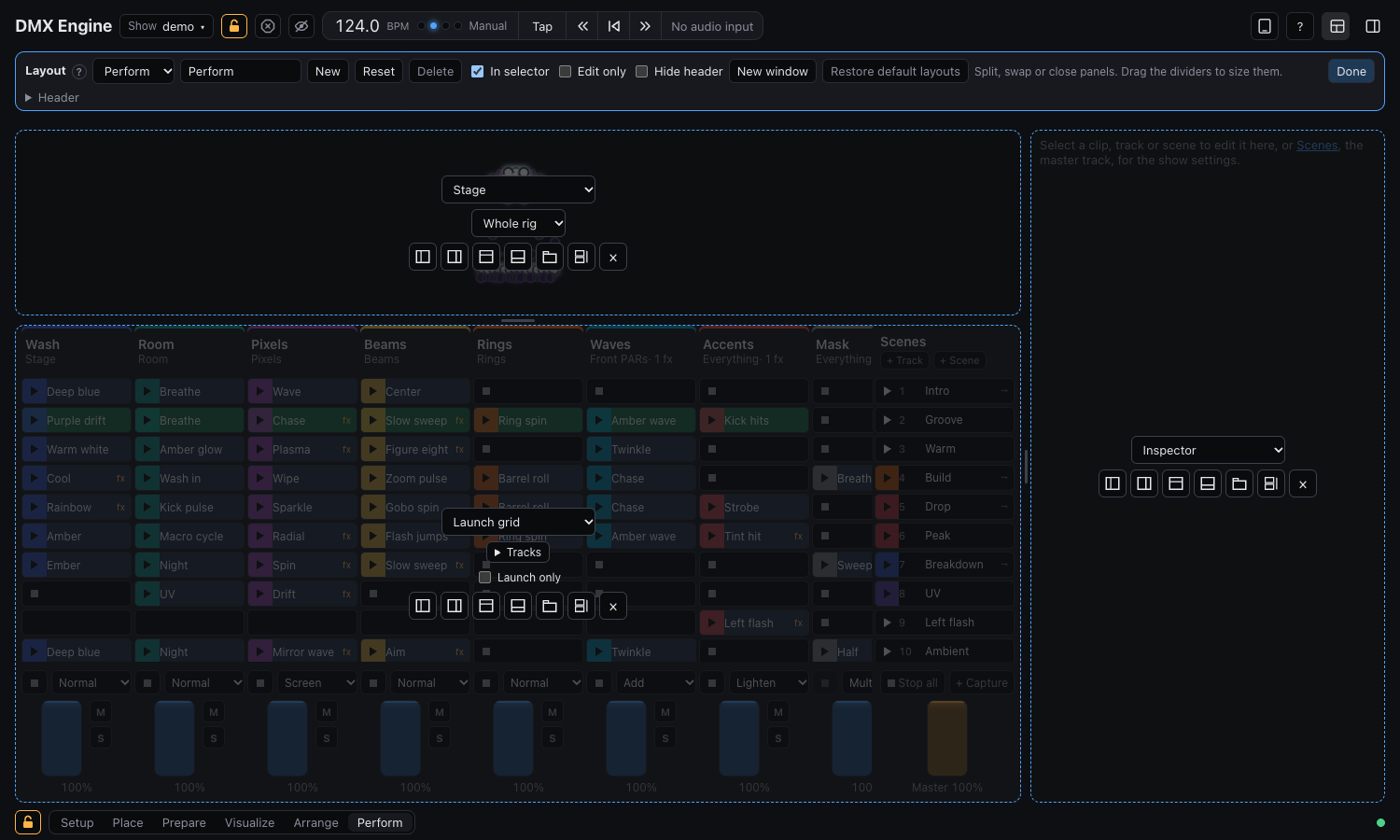
Arrange the window
Press the layout button at the right of the header (under ⋯ in a narrow window). Each panel shows what it holds and its tools:
- Choose what the panel shows from the list: Stage, 3D stage, Arranger, Launch grid, Mixer, Inspector, Performance controls, Scripting, DJ players, Patch, Add fixtures, Rig layout, DMX map, Groups, Lamps, DMX output, or Empty. Most can be in a window once; the stage, 3D stage, Performance controls and Scripting as often as you like.
- The four split buttons add an empty panel on that side.
- The tabs button puts the panel in a set of tabs, and the stack button puts it in a scrolling stack. Each starts with an empty panel beside yours to fill.
- × closes the panel, and the one beside it takes its space.
Tabs show one panel at a time; + on the tab bar adds another. A panel in a tab leaves its title to the tab, and its ? sits there beside the name. A stack shows its panels one under another and scrolls when they don't fit, which suits a narrow column of Groups, Lamps and DMX output; panels like Groups and Lamps are as tall as what's in them, and panels that fill their space, like the stage, start at a set height. Drag the bar under a panel to set its height, double-click the bar to fit its content again, and + Add a panel adds one. A panel in a hidden tab keeps its place and anything half typed. When only one panel is left in a set of tabs or a stack, it takes the container's place.
Drag the dividers between panels to size them, whether or not the editor is on. Press Done when it's right. Everything is saved as you go, and layouts work while editing is locked, because they don't change the show.
The mixer normally runs along the bottom of the launch grid, lined up with its tracks. Give it a panel of its own and it leaves the grid, so the faders can go anywhere.
Panel options
Some panels have options in the layout editor, for that one panel:
- Launch grid and Mixer: choose which Tracks they show, for a grid of just the accents on a second screen. Tracks can't be dragged while a grid shows only some of them.
- Launch grid: Launch only lets it launch and nothing else. Names can't be changed, and clips and tracks can't be moved, added or deleted, from the grid or the keyboard. The edit lock is still what protects the show; this keeps stray hands off one layout.
- Stage and 3D stage: pick a group to show just that part of the rig, zoomed to fit.
Build a toolbar
Header in the layout editor's bar sets what each layout's header holds. Use ‹ and › to reorder, × to remove, and + Add for more, including Tap tempo, Stop all and spaces that push things apart. The layout editor's own button stays, so you can always get back. Reset header puts the usual set back.
A Toolbar panel is the same thing anywhere in a layout, with its own items set in the layout editor. With Hide header, it can replace the header altogether, or go on a second screen. ⌘L and ⌘B work whether or not their buttons are on screen.
Keep several layouts
New starts a layout from the one on screen, and the name field renames it. Pick one from the list to switch to it, for example one for a laptop and one for a large screen. Delete removes a layout, and a built-in one you delete doesn't come back.
Use more than one screen
New window opens another window with the current layout, connected to the same engine like a tablet is. Drag it to your other screen and make it full screen; each window remembers its own layout, and you can pick or edit it there. With Hide header on, a layout fills the window, and moving the pointer to the top edge brings the header back, and the bottom edge the layout selector.
Selection is shared between the windows on this computer, so clicking a clip in the launch grid on one screen shows it in the inspector on another, and a fixture selected in Patch is selected in Rig layout on another screen. Copy and paste work across them too.
In the desktop app, windows come back where they were the next time you start it. Close one to stop that. Closing the main window quits the app. In a browser, extra windows are ordinary windows, and they don't come back on their own.
Layouts without everything
If a layout has no inspector, the inspector button leaves the header; a window beside it can have one instead. A window without a launch grid has nothing to select clips with, unless another window has one, and keys that act on clips, such as Delete, do nothing there, so they can't change something you can't see.
While editing is locked or in blind mode, panels from the Setup layout stay on screen but can't be used.