Launching clips and scenes
Perform is where you play. Each column of the grid is a track and each row is a scene. A clip is one cell: a look for that track's fixtures.
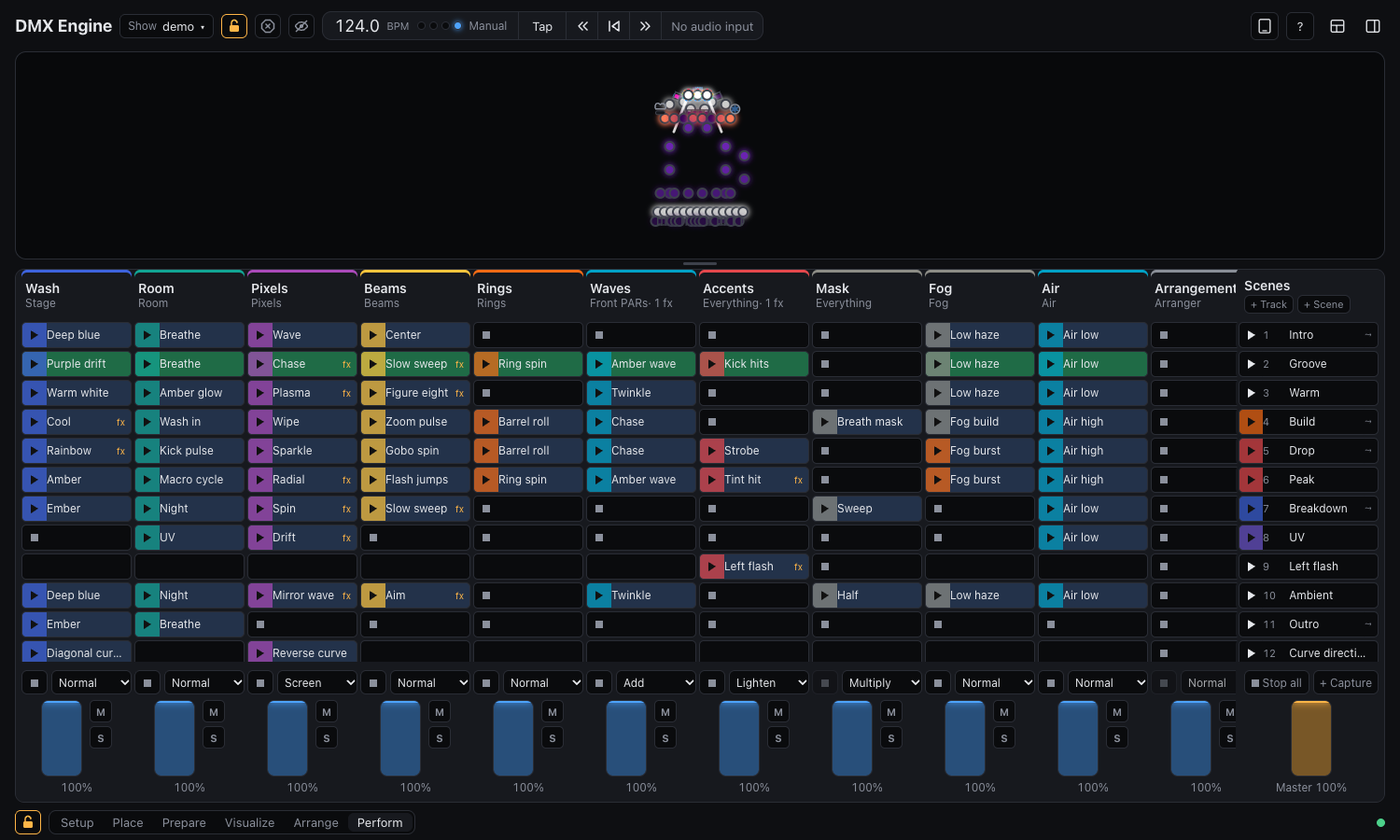
Launch a clip
Click the ▶ arrow on a clip to start it. The clip starts on the next beat or bar rather than at once, so it stays in time with the music; see Quantization. Clicking the clip's name selects it for editing instead, which opens the inspector.
Starting a clip stops whatever else was playing on the same track. Tracks don't affect each other.
Launch a scene
A scene is a row. Its ▶ arrow starts every clip in that row at once, and stops the tracks that have no clip in it, unless the track is set to Ignore scene launch.
Stop
Each track has a stop button, and Stop all silences every track. A stop follows the show's quantization and fades out with the show's fade.
Momentary clips
A clip set to Momentary in the clip editor plays only while you hold its button, with the mouse, a finger, Space or Enter. Letting go stops it. Useful for strobes and hits.
Quantization
Clips can start immediately, on the show's global setting, on their scene's setting, or on their own beat or bar. A clip's own setting wins over the scene's, which wins over the show's.
Fades
A clip's fade wins over the scene's, which wins over the show's. A scene launch uses the scene fade; a direct clip launch uses the show fade.
Next clip and schedules
This section will cover Next clip action and Scene schedules; see Clips and lanes for the settings.